How should I add my payroll participants?

How should I add payroll participants?

We offer three processes for remitting payroll contributions. You can enter each participant’s information manually, import information for an entire list of participants via a spreadsheet or utilize our payroll integration services (for approved payroll providers only).

For more information about our payroll integration services, call us at (800) 421-6019 to see if your payroll provider is integrated with our program. Otherwise, review the table below to decide whether the manual or import option is a better fit for your plan.

For more information about our payroll integration services, call us at (800) 421-6019 to see if your client’s payroll provider is integrated with our program. Otherwise, review the table below to decide whether the manual or import option is a better fit for the plan.

  Manual Import
Ideal for smaller plans table checkmark  
Ideal for larger plans   table checkmark
Easier to implement table checkmark  
Allows you to save payroll and continue at a later time table checkmark table checkmark
Can process payroll entirely online table checkmark  
Enter payroll by hand table checkmark  
Ideal for plans with an existing payroll file   table checkmark

What information do I need to set up a payroll manually or import a payroll spreadsheet?

For either type of payroll setup, before starting, you will need the following:

  • A list of payroll participants
  • The type and amount of payroll deduction for each participant
  • If applicable, the type and amount of employer contributions for each participant
  • The total amount of both employee and employer contributions
  • Confirmation of the bank account you intend to use to fund your payroll contribution. If you need to add or update a bank account, submit the Bank Draft Authorization Change Request form.

This information can be found in the plan’s payroll report, which can be provided by the plan’s outside payroll provider or an internal payroll department.

If your plan is utilizing deferral designation services ‒ part of the Online Enrollment feature suite ‒ you can also access the latest participant deferral elections through the Reports & Analysis section of this site. Refer to the Administration Guide or the Deferrals section of the Help Center for more details about how to access this report.

If the plan is utilizing deferral designation services ‒ part of the Online Enrollment feature suite ‒ you can also access the latest participant deferral elections through the Reports & Analysis section of the plan sponsor site. Refer to the Administration Guide or the Deferrals section of the Help Center for more details about how to access this report.

Note: If you plan to fund your payroll with forfeiture accounts, please call your third-party administrator.

Before You Start:

You will need your plan sponsor website user ID, which will be emailed to you at the email address you provided, and default password.

How do I log in?

Step
1
Go to capitalgroup.com/retirement/sponsor.
Step
2

Upon logging in for the first time, you will need to change your password. Enter your user ID (PSW ID) and default password in their respective fields. The default password must be entered in uppercase letters. Click CONTINUE.

  • Your user ID (PSW ID) will be sent to you at the email address you provided.
  • For new plans, your Implementation Coordinator will give you your default password.
  • If you have taken over payroll duties from someone else and do not have a password, call (800) 421-6019.
Step
3

On the Change Login Credentials screen, enter your user ID and default password again. Change your password by entering it twice.

You also have the option to create a custom user ID at this time. If you would like to create or change your custom user ID in the future, you can do so by logging in and selecting "Change User ID" from the PREFERENCES drop-down menu at the top-right of the screen.

Click CONTINUE.

  • Your new password must be 8 to 20 characters long.
  • Must contain at least 1 lower case character, 1 upper case character, 1 numeric character and 1 special character (@, ^, ", and ' symbols are not allowed)
  • Must be different from your last 6 passwords
Step
4
On the Change Password - Confirmation screen click CONTINUE.
Step
5

On the Add Delivery Method screen, enter your email or a text-enabled phone number to establish multi-factor authentication (MFA). After you select Add Delivery Method, a passcode will be sent to the entered email or text-enabled phone. Enter the passcode on the next screen to establish MFA. Then, click on Create Security Profile.

Establishing MFA will allow you to reset your password online during non-business hours. Once this one-time setup process is complete, you will be able to click Reset password to verify your identity and initiate a password reset.

You can change your MFA settings at any time by logging in and selecting "Change Multi-Factor Authentication Preferences" from the PREFERENCES menu at the top-right of the screen.

Step
6
Check the box to accept the Terms & Conditions and click CONTINUE.

How do I change my password?

After logging in:

  1. Go to PREFERENCES, in the upper right-hand corner in the black bar, and select Change password.
  2. Enter your user ID and current password.
  3. Create a new password that complies with the displayed password criteria. Enter it twice and click CONTINUE.

If you forget your password or are locked out of the system, visit our Getting Started FAQ.

How do I manually add a payroll for the first time?

Step
1
After logging in, click the Plan Administration tab, which will take you to the Payroll section. Click the blue ADD NEW PAYROLL button and select Manual.
Step
2
On the Select Criteria screen, confirm that you have the items listed in the Before You Start section.
Step
3

Uncheck All and make your participant status selection(s).

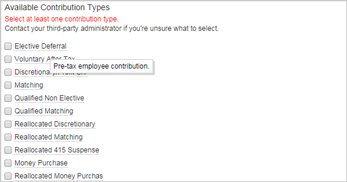
Select contribution type(s) and/or vesting item(s) , and then click CONTINUE.

Contribution Types and Vesting Items

You can roll over any terms with a dotted line underneath for a definition.

IMPORTANT:

If you are unsure of what contribution type(s) to select, contact your third-party administrator.

Selecting the wrong contribution type can create inaccuracies in payroll reporting, which can necessitate corrections to the plan’s records.

help screenshot

Step
4

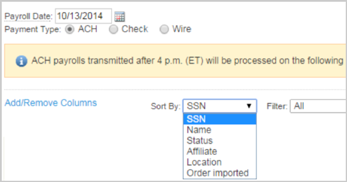
On the Make Your Edits screen, choose a payroll date.

If payroll is submitted before 4:00 p.m. Eastern Time on a business day, contributions will be transferred at the close of the current business day.

If payroll is submitted after 4:00 p.m. Eastern Time, or on a weekend or holiday, contributions will be transferred at the close of the next business day.

If a future payroll date is entered, the payroll will remain in Held status until that day or the next closest business day.

Step
5

The payment type, ACH, will already be selected.

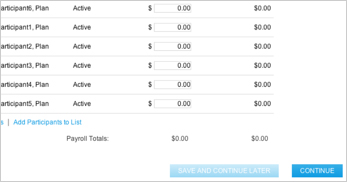
Enter the dollar amounts and time (if applicable) in the appropriate column(s) for each participant.

Participant Columns

  • You can sort your view by clicking any of the blue column headers.
  • As you work, the row for the participant you are entering information for will be highlighted.
Step
6

Confirm column totals and click CONTINUE or SAVE AND CONTINUE LATER.

Save and Continue Later

Clicking SAVE AND CONTINUE LATER allows you to save your payroll and return to it at your convenience. This is useful if you don’t initially have all the information you need to submit your payroll, but would like to get started. Your payroll will be saved with an In Progress status.

If you click Save and Continue Later on this page, your payroll will not be transmitted. You must complete the full process and click Submit in order to transmit your payroll.

Click Continue.

help screenshot

Step
7

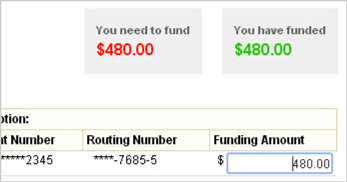
On the Fund Your Payroll screen, enter the funding amount to be withdrawn from your bank account(s). If you plan to fund your payroll with forfeiture accounts, contact your third-party administrator. If not, you can disregard the Forfeiture Accounts section.

On the Fund Your Payroll screen, enter the funding amount to be withdrawn from the bank account(s).

Step
8

When you are done, confirm that the red and green totals match and click CONTINUE.

help screenshot

Step
9

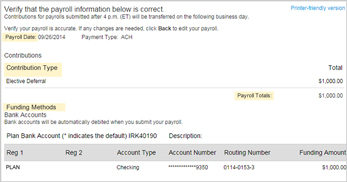
On the Verify and Submit Your Changes screen, confirm your payroll date, contribution type(s), payroll totals and funding method(s).

If you want to receive an email confirming you submitted your payroll, please enter your email address in the Email Notifications field.

Click SUBMIT.

help screenshot

If you need to make changes, you can click the numbered step indicator for the section you’d like to update; however, you may need to re-enter some information.

Step
10

You will see a confirmation page.

If you want to print a copy of this confirmation page to save for your records, do so now. Once you leave this page, you cannot return.

Click DONE to return to the Payroll screen.

Step
11

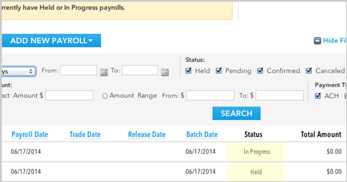
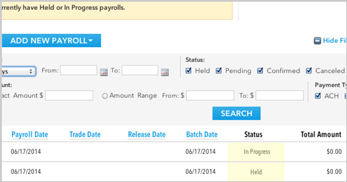
Verify that your payroll’s status is Held or In Progress.

Held or In Progress

  • Held means your payroll has been submitted for processing, but funds have not posted to participants’ accounts.
  • In Progress means your payroll has been saved but has not been submitted for processing. This status can result from clicking SAVE AND CONTINUE LATER.

If you do not see one of those statuses, edit your payroll or call us.

Call Us

If you need help, please call (800) 421-6019.

help screenshot

Once you’ve submitted your first manual payroll, just copy that payroll when submitting future payrolls. Learn how to copy a payroll.

How do I import a payroll?

Importing a payroll consists of two parts:

Part 1: Formatting a spreadsheet that will be used as a template to build future payrolls.

Part 2: Entering the payroll spreadsheet into our system.

Step
1

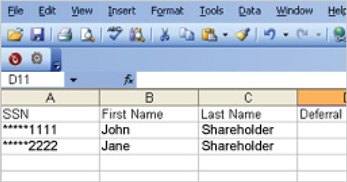
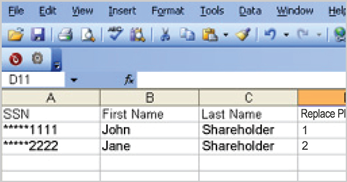
Create an Excel spreadsheet with the following column headings:

  • Social Security number (required, numbers only ‒ no dashes or spaces)
  • First name (in an individual column)
  • Last name (in an individual column)
  • Each contribution type(s) to be funded (in an individual column)

    • The contributions used to fund the retirement plan are classified by contribution types (which may also be referred to as money type).
    • The most common contribution types for payroll submission are elective deferral and employer match.

    IMPORTANT:

    If you are unsure of what contribution type(s) to select, contact your third-party administrator.

    Selecting the wrong contribution type can create inaccuracies in payroll reporting, which can necessitate corrections to the plan’s records.

  • If applicable, each vesting item (in an individual column)

help screenshot

Step
2

Enter participant information into each column. If you are missing information, fields can be left blank.

If you are reusing a previous CSV (comma delimited) file for your payroll, remember to delete all information for participants that is not applicable for this payroll.

Step
3

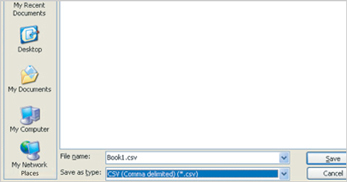
Save the information as a CSV (comma delimited) file by selecting Save As from Excel’s file drop-down menu, then selecting CSV from the Save as type field.

help screenshot

We highly recommend that you save your spreadsheet as a CSV (comma delimited) file before importing it into our system. If you choose to upload an Excel workbook, see our technical FAQ.

Step
4

After logging in, click the Plan Administration tab, which will take you to the Payroll section.

Click the blue ADD NEW PAYROLL button and select Import.

Step
5

On the Select File & Format tab, click the blue BROWSE button to select the CSV file you’d like to import.

Step
6

If you are importing for the first time, choose Establish New Format and then Create New Name.

Enter a name for your payroll format in the field and click CONTINUE.

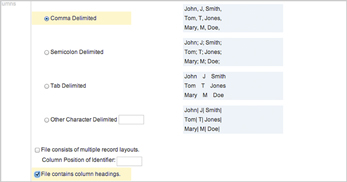
  • On the Define Format screen, select Comma Delimited, check the box next to File contains column headings and click CONTINUE.

    help screenshot

If you want to replace or edit an existing payroll template, choose Save Over Existing Format, select the file you want to overwrite, and click CONTINUE.

  • On the Define Format screen, select Comma Delimited, check the box next to File contains column headings and click CONTINUE.

If you want to use a previously formatted template without changes ‒ using the same contribution types, column values and header rows as a previous import file ‒ choose Use Existing Format, select the format name and click CONTINUE.

Step
7

On the Preview Import File screen, disregard the Record Type field (it will always default to FINANCIAL). Review the values and column headings for accuracy in the Preview of your import file window and click CONTINUE.

If you need to make changes, click the Select File & Format tab. Please be aware that you may need to re-enter some information from the previous step.

Step
8

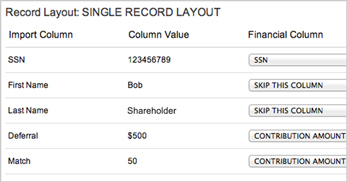
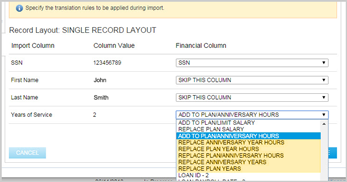
On the Map Columns screen, select the appropriate description in the drop-down menu for each row in the Financial Column. For participants’ first and last names, choose Skip This Column. Click CONTINUE.

If you are unsure about which descriptions to select, contact your third-party administrator.

help screenshot

Step
9

Choose the appropriate decimal position in the drop-down menu for each row and click CONTINUE.

The default is 1 = 1.0 (most people will use this). For data fields in which 100 equals $1.00, choose 1 = .01.

If you need help, call (800) 421-6019.

This concludes Part 1, in which you have formatted your payroll spreadsheet. During Part 2, you will enter the payroll into our system.
Step
10

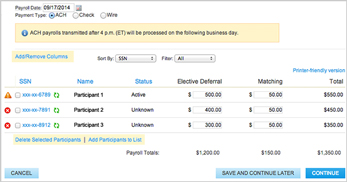
On the Make Your Edits screen, choose a payroll date.

If payroll is submitted before 4:00 p.m. Eastern Time on a business day, contributions will be transferred at the close of the current business day.

If payroll is submitted after 4:00 p.m. Eastern Time, contributions will be transferred at the close of the next business day.

Step
11

The payment type, ACH, will already be selected. Verify the dollar amounts and vesting time (if applicable) for each participant .

  • You can sort your view by clicking any of the blue column headers. Based on the header you select, filtering will arrange the information in sequential order for easier searching.
  • As you work, the row for the participant you are entering information for will be highlighted.

You can modify your payroll in the following ways:

  • To add participants, click Add Participants to List.
  • To remove participants from the payroll list, check the boxes next to their Social Security numbers and click Delete Selected Participants.
  • To add a contribution type, click Add/Remove Columns and make your selections.

help screenshot

Click CONTINUE or SAVE AND CONTINUE LATER .

  • Clicking SAVE AND CONTINUE LATER allows you to save your payroll and return to it at your convenience.
  • This is useful if you don’t initially have all the information you need to submit your payroll, but would like to get started. Your payroll will be saved with an In Progress status.
Step
12

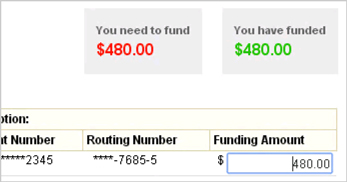
On the Fund Your Payroll screen, enter the funding amount to be withdrawn from your bank account(s). If you plan to fund your payroll with forfeiture accounts, contact your third-party administrator. If not, you can disregard the Forfeiture Accounts section.

On the Fund Your Payroll screen, enter the funding amount to be withdrawn from the bank account(s).

Step
13

When you are done, confirm that the red and green totals match and click CONTINUE.

help screenshot

Step
14

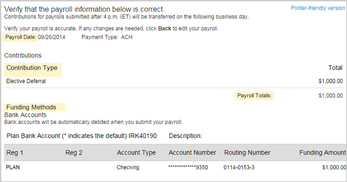
On the Verify and Submit Your Changes screen, confirm your payroll date, contribution type(s), payroll totals and funding method(s).

help screenshot

Step
15

If you want to receive an email confirming that you submitted your payroll, please enter your email address in the Email Notifications field.

Click SUBMIT.

If you need to make changes, you can click the numbered step indicator for the section you’d like to update. Please be aware that you may need to re-enter some information from previous steps.

Step
16

You will see a confirmation page.

If you want to print a copy of this confirmation page to save for your records, do so now. Once you leave this page, you cannot return.

Click DONE to return to the Payroll screen.

Step
17

Verify that your payroll’s status is Held or In Progress .

  • Held means your payroll has been submitted for processing, but funds have not posted to participants’ accounts.
  • In Progress means your payroll has been saved, but has not been submitted for processing. This status can result from clicking Save and Continue Later.
  • To learn more, visit our Payroll Essentials section for more detailed status information or roll over the Status column header to view more information.

If you do not see one of those statuses, edit your payroll or call (800) 421-6019.

help screenshot

How do I copy my payroll?

Step
1

After logging in, click the Plan Administration tab, which will take you to the Payroll section.

Step
2

Select a payroll that you want to copy and click the blue Actions link at the end of the row to select Copy.

If your payroll contained loan repayments, you will be asked if you want to keep the loan information. Select YES if you want to keep the loan information and NO if you do not want to keep it.

Step
3

On the Make Your Edits screen, choose an applicable payroll date, which defaults to the current date.

If payroll is submitted before 4:00 p.m. Eastern Time on a business day, contributions will be transferred at the close of the current business day.

If payroll is submitted after 4:00 p.m. Eastern Time, contributions will be transferred at the close of the next business day.

If a future payroll date is entered, the payroll will remain in Held status until that day or the next closest business day.

Step
4

The payment type, ACH, will already be selected.

You can use the “Sort By” dropdown to sort by name and organize your participants in alphabetical order, or you can sort your view by clicking any of the blue column headers. Based on the header you select, filtering will arrange the information in sequential order for easier searching.

You can use the “Sort By” dropdown to sort by name and organize the participants in alphabetical order, or you can sort your view by clicking any of the blue column headers. Based on the header you select, filtering will arrange the information in sequential order for easier searching.

help screenshot

Step
5

Make edits to your payroll as needed for each participant :

As you work, the row for the participant you are entering information for will be highlighted.

To make edits to participants, you can modify your payroll in the following ways:

  • To add participants, click Add Participants to List.
  • To remove participants from the payroll list, check the boxes next to their Social Security numbers and click Delete Selected Participants.

To edit contribution types, click Add/Remove Columns and make your selections.

To edit dollar amounts , change the value in the applicable field. Confirm that contribution breakdowns and payroll totals match employer payroll totals (at the bottom of the screen).

If dollar amounts are edited, press the tab key after entering each amount to recalculate Payroll Totals.

help screenshot

Click CONTINUE or SAVE AND CONTINUE LATER .

  • Clicking SAVE AND CONTINUE LATER allows you to save your payroll and return to it at your convenience. This is useful if you don’t initially have all the information you need to submit your payroll, but would like to get started.
  • Your payroll will be saved with an In Progress status.
Step
6

On the Fund Your Payroll screen, enter the funding amount to be withdrawn from your bank account(s). If you plan to fund your payroll with forfeiture accounts, review with your third-party administrator. If not, disregard the Forfeiture Accounts section.

On the Fund Your Payroll screen, enter the funding amount to be withdrawn from the bank account(s).

Step
7

When you are done, confirm that the red and green totals match and click CONTINUE.

help screenshot

Step
8

On the Verify and Submit Your Changes screen, confirm your payroll date, contribution type(s), payroll totals and funding method(s).

help screenshot

If you need to make changes, you can click the numbered step indicator for the section you’d like to update. Please be aware that you may need to re-enter some information from previous steps.

Step
9

To receive an email confirming that you submitted your payroll, enter your email address in the Email Notifications field.

Click SUBMIT.

Step
10

You will see a confirmation page.

If you want to print a copy of this confirmation page to save for your records, do so now. Once you leave this page, you cannot return.

Click DONE to return to the Payroll screen.

Step
11

Verify that your payroll’s status is Held . If you do not see that status, call us at (800) 421-6019.

  • Held means your payroll has been submitted for processing, but funds have not posted to participants’ accounts.
  • While logged into the RecordkeeperDirect website, you can roll over the Status column header to view status definitions.

help screenshot

How do I view my payroll?

How do I view my payroll?

  1. After logging in, click the Plan Administration tab, which will take you to the Payroll section.
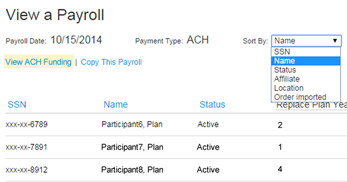
  2. Select a payroll and click on the blue Actions link at the end of the row. Click View to show a breakdown of contribution(s) by participant(s).
    • This information will remain available online for two years; after that, call us at (800) 421-6019 for assistance.
    • Payrolls in a Held or In Progress status can be viewed or edited. Payrolls in other statuses can only be viewed.
    • Click View ACH Funding to see the bank information currently linked to your plan.
    • You can sort your payroll by using the dropdown menu.

    help screenshot

How do I edit my payroll?

How do I edit my payroll?

  1. After logging in, click the Plan Administration tab, which will take you to the Payroll section.
    • Only payrolls in Held or In Progress status are editable.
  2. Select a payroll and click on the blue Actions link at the end of the row to select Edit.
    • If you edit a payroll in Held status, the system views this as a new payroll. Therefore, a warning will display stating that this payroll will not be processed until submitted or canceled.
  3. Edit your payroll. For step-by-step instructions on how to edit payroll, follow the same steps as Import Payroll, starting at Step 10.
  4. After making your edits, click SUBMIT to process your payroll.

How do I delete my payroll?

How do I delete my payroll?

  1. After logging in, click the Plan Administration tab, which will take you to the Payroll section.
    • You can only delete payrolls that are in Held or In Progress status. If you want to delete a payroll that is in Pending status, call us at (800) 421-6019 for assistance.
  2. Select the payroll you want to delete and click on the blue Actions link at the end of the row.
  3. Click Delete.

How do I return to a payroll I previously saved by clicking the SAVE AND CONTINUE LATER button?

How do I return to a payroll I previously saved by clicking the SAVE AND CONTINUE LATER button?

If you previously clicked the SAVE AND CONTINUE LATER button, you would return to the Payroll section of the Plan Administration tab, where you can select the saved payroll you want to resume working on.

What is the status of my payroll?

What is the status of my payroll?

  • Held means that your payroll is ready for processing, but funds have not posted to participants’ accounts.
  • Pending means that your payroll has been submitted for processing and funds will post to participants’ accounts on the current business day.
  • In Progress means your payroll has been saved but not submitted for processing.
  • Confirmed means that your payroll has been processed and funds have posted to participants’ accounts.
  • Canceled means that your payroll submission was deleted off the system.

How do I submit a payroll if I am out of the office?

How do I submit a payroll if I am out of the office?

How do I change a contribution type?

How do I change a contribution type?

  • If your payroll’s status is Held or In Progress, you can edit your contribution type.
  • If your payroll’s status is Pending or Confirmed, first contact your third-party administrator to confirm the correct contribution type; then call us at (800) 421-6019 for assistance.
  • If your payroll’s status is Pending or Confirmed, call us at (800) 421-6019 for assistance.

How do the Employee Deferral Eligibility Tracking Services work?

Capital Group offers Employee Deferral Eligibility Tracking Services to help track employees’ eligibility to contribute to their retirement plan. These services are available to plans with an eligibility period of at least 60 days.

New plans can activate the services as part of their implementation paperwork. Existing plans that want to activate them can submit the Automatic Enrollment Services election form.

The Employee Deferral Eligibility Tracking Services offer the following benefits:

  • Capital Group will track each employee’s progression towards eligibility based on the plan’s requirements, reducing the administrative load for plan sponsors and third-party administrators
  • The plan sponsor will receive notifications when employees are projected to become eligible within the next 60 days, as well as when employees are enrolled in the plan, in order to update payroll withholding
  • We will also send invitations by email or mail to employees who are approaching eligibility, inviting them to enroll in the plan (or decline enrollment)
What steps are involved in the Employee Deferral Eligibility Tracking Services?

The services work as follows:

Step
1
Establishing employee accounts. When a new employee is hired who may become eligible to participate in the plan, the plan sponsor should establish an account for the employee as soon as possible in a “not eligible” status. When establishing this account, the “plan entry date” should be left blank, as the system will calculate this date at a later point in time.
Step
2
Providing hours worked. If using an hour-based method for determining eligibility, it is important for the plan sponsor to input the hours worked with each payroll contribution roster. For more information on this process, refer to the “Providing hours worked” section.
Step
3
Review the Employee Eligibility Projection Report. A notification will be sent to the plan sponsor alerting them when a new Employee Eligibility Projection Report is available online, in the Reports & Analysis section under Standard Reports. The report identifies employees who are projected to become eligible to enroll in the plan within the next 60 days, and runs on the 15th and last day of each month. This report should be reviewed for accuracy and can also serve as a reminder to prepare and distribute any required regulatory notices.
Step
4
Send invitation to enroll. Approximately 30 days prior to the projected eligibility date, we will send an invitation to the employee (by email or mail) inviting them to enroll in the plan (or decline enrollment).
Step
5
Update eligibility status. Once the employee has met all eligibility requirements (including entry date requirements), the participant’s status will be updated to “eligible.”

How are hours worked submitted for eligibility purposes (when using Employee Deferral Eligibility Tracking Services with an hour-based method)?

Many plans have an “hours worked” component of their plan eligibility requirements. For the system to effectively track eligibility for these plans, it is critical for the plan sponsor or TPA to submit hours worked with each payroll contribution roster, as follows:

Step
1
When selecting the “Status” criteria for a payroll contribution roster, be sure to include all relevant employee statuses ‒ including “not eligible” employees.
Step
2
Before leaving the criteria selection screen, check the box for “Add to Plan and Anniversary Hours.” This will add a column with this header to your contribution roster.
Step
3
Once you have selected all relevant statuses, contribution types and additional column headers for the roster, click “Continue.”
Step
4
Complete the relevant details for the roster, including the hours worked for the period for all employees.
Step
5
Complete the rest of the roster submission process, including inputting contribution information, confirming the bank account to fund contributions and submitting the roster.

How are plan sponsors notified when a participant is approaching eligibility (when using Employee Deferral Eligibility Tracking Services)?

A notification is sent to the designated plan sponsor contact(s) when a new Employee Eligibility Projection Report is available online.

The projected eligibility report identifies employees who are projected to become eligible to participate in the plan within the next 60 days. The report runs on the 15th and last day of each month.

The plan sponsor or TPA must log in to access the report. The Employee Eligibility Projection Report is found in the Reports & Analysis section of the site under the Standard Reports tab.

help screenshot

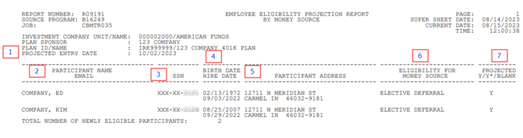
The report contains the following information:

  1. Projected entry date: The date the participant(s) listed on the report will be eligible to enter the plan and start contributing.
  2. Participant name: Last name, first name of the participant.
  3. SSN: Participant’s Social Security number.
  4. Birth date: Participant’s date of birth.
  5. Hire date: Participant’s date of hire, used to calculate the entry date.
  6. Eligibility for money source: Will list the employee deferral type(s) for which the participant is eligible to start receiving contributions
  7. Projected Y/Y*/Blank:
    • “Y” ‒ Indicates the participant has met the eligibility requirements and will enter the plan on the projected entry date listed in item #1 at the top left-hand corner of the report.
    • “Y*” ‒ This status isn’t utilized by our service.
    • “Blank” ‒ Indicates the participant has not met eligibility requirements but is projected to meet them soon and will enter the plan on the projected entry date listed on the top left-hand corner of the report.

This report should be reviewed for accuracy and can also serve as a reminder to prepare and distribute any required regulatory notices.


What information do I need to add participants?

Before starting, you will need each participant’s:

  • Social Security number
  • First and last name
  • Birth date
  • Mailing address
  • Current plan status* (e.g., eligible, terminated)
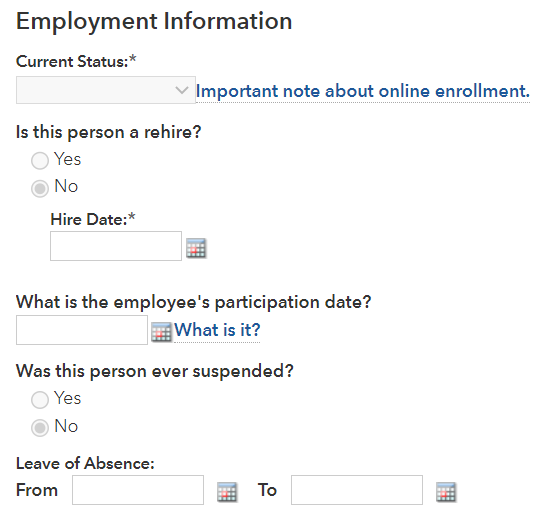
  • Hire date
  • Participation date (if not using eligibility tracking services)
  • Phone number (optional)
  • Email address (optional)
  • Payroll frequency (if the plan allows for loans)
  • Investment elections (not required for those enrolling online)

* Participants must be added in “eligible” or “not eligible” status in order to be able to enroll online.
* Participants must be added in “eligible” or “not eligible” status in order to be able to enroll online.
How do I add a participant to my plan?

How do I add a participant to a plan?

Step
1

After logging in, click the Plan Administration tab.

After logging in to the TPA website, click VIEW PLANS, then click Actions for the plan you wish to view and select Participants from the drop-down menu.

Click the Participants tab beneath it.

From the plan sponsor website, click the Plan Administration tab, then select the Participants sub-tab.

Click the blue ADD NEW PARTICIPANTS button.

Step
2

Enter the participant’s Social Security number and click VERIFY.

If a record associated with your participant’s Social Security number already exists in your plan, you will receive an error message. If not, you can enter information into the remaining fields.

If a record associated with the participant’s Social Security number already exists in the plan, you will receive an error message. If not, you can enter information into the remaining fields.

Step
3

Enter the participant’s personal and employment information. All required fields are marked with an asterisk (Leave the employee’s plan entry date blank if using Employee Deferral Eligibility Tracking Services). Click ADD PARTICIPANT.

emp info screenshot

If applicable, enter the payroll frequency in the Loan Payment Frequency field if your plan allows for loans.

If applicable, enter the payroll frequency in the Loan Payment Frequency field if the plan allows for loans.

Step
4

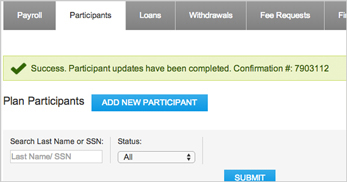
You will receive a message confirming that the participant has been added to the plan.

IMPORTANT:

Upon being added, a new participant’s contributions will be automatically invested in the plan’s default investments. If the new participant has provided their investment elections, they should be updated now to ensure the participant’s funds are invested accordingly.

If the participant has already provided investment elections via a paper enrollment form, click UPDATE PARTICIPANT . Otherwise, the participant account setup is now complete and you can click DONE.

For additional help, please contact us.

How do I update an existing participant’s personal or employment information?

Step
1

After logging in, click the Plan Administration tab. Click the Participants tab beneath it.

After logging in to the TPA website, click VIEW PLANS, then click Actions for the plan you wish to view and select Participants from the drop down-menu. From the plan sponsor website, click the Plan Administration tab, then select the Participants sub-tab.

Step
2

Locate the participant in one of two ways:

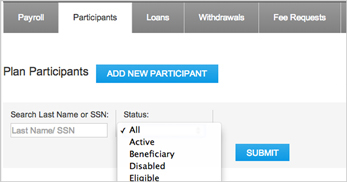
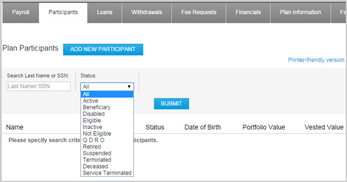
  • Enter the participant’s last name or Social Security number in the first box or their status in the second box. Click SUBMIT.
  • Leave the status (in the second box) set to its default, All, to retrieve all participants in your plan. Click SUBMIT.

help screenshot

Step
3

Click the participant’s name and select Participant Information.

Step
4

On the Personal & Employment Information tab, update all applicable information. After you are finished, click DONE.

Step
5

Verify your changes. Updated information will appear in bold. To make additional changes, click BACK.

If all of the information is correct, click SUBMIT.

Step
6

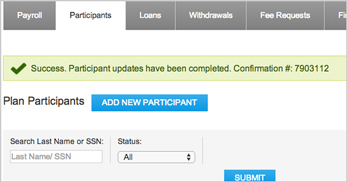
You will receive a green confirmation message at the top of the Participants tab. Changes are made in real time.

help screenshot

How do I change investment elections for an existing participant?

Step
1

After logging in, click the Plan Administration tab, then select the Participants sub-tab.

After logging in to the TPA website, click VIEW PLANS, then click Actions for the plan you wish to view and select Participants from the drop down-menu. From the Plan sponsor website, click the Plan Administration tab, then select the Participants sub-tab.

Step
2

Locate the participant in one of two ways:

  • Enter the participant’s last name or Social Security number in the first box or their status in the second box. Click SUBMIT.
  • Leave the status (in the second box) set to its default, All, to retrieve all participants in your plan. Click SUBMIT.

help screenshot

Step
3

Click the participant’s name and select Participant Information.

Step

Click the Investment Elections tab and then click the Make Changes link at the top, near Investment Elections.

Step
5

In the New Elections column, enter the whole percentage for each fund indicated by the participant on their enrollment/change form.

The investments are not listed online in the same order as they are listed on the retirement plan enrollment/change form, so be careful to confirm that you are entering the right values for each fund.

Verify that the allocations add up to 100%.

Step
6

On the Verify and Submit Your Changes screen, verify your entries. If you need to make any changes, click the circle next to the section you’d like to update. Click SUBMIT CHANGES.

Step
7

You will receive a green confirmation message at the top of the Participants tab. Your changes are effective immediately.

help screenshot

How does auto enrollment work?

Capital Group offers services to help facilitate a plan’s automatic enrollment provision and ease the administrative burden for plan sponsors and TPAs. We offer the flexibility to support plans in one of two ways ‒ either with or without our Employee Deferral Eligibility Tracking Services. For more information on the eligibility services, refer to the “Eligibility” section.

Automatic enrollment with Employee Deferral Eligibility Tracking Services

When Capital Group tracks eligibility, the following key steps are involved:

Step
1

The plan sponsor or TPA establishes an account for new employees (at the time of hire) with a “not eligible” status and without a plan entry date. The Employee Deferral Eligibility Tracking Service will determine the plan entry date at a later point.

Step
2

If using an hours-based eligibility method, the plan sponsor or TPA must include hours worked for each employee with each payroll contribution roster. For more information on this process, refer to the “Providing hours worked” section.

Step
3

A notification is sent to the designated plan sponsor contact(s) alerting them when a new Employee Eligibility Projection Report is available online in the Reports & Analysis section of the plan sponsor and TPA websites. The report identifies employees who are projected to become eligible to enroll in the plan within the next 60 days, and runs on the 15th and last day of each month.

Step

Approximately 30 days prior to the projected plan entry date, we will send an invitation to the employee (by email or mail) inviting them to enroll in the plan (or decline enrollment).

Step
5

Once the employee has met all eligibility requirements, including entry date requirements, the participant’s status will automatically be updated to “eligible” and a notification will be sent to the plan sponsor contact(s) alerting them to a new Payroll Change Notification Report, which will indicate the participant’s deferral rate. The report will show participants who made an affirmative election, were auto enrolled or declined enrollment. The plan sponsor or TPA will use this information to update payroll withholding and the plan contribution rosters.

Step
6

When the date arrives for auto-enrolled participants to be auto-increased (if applicable), an additional notification will be sent to the plan sponsor contact(s) and the Payroll Change Notification Report will indicate each participant’s new deferral rate.

Automatic enrollment without Employee Deferral Eligibility Tracking Services

When Capital Group is not tracking eligibility, the plan sponsor works with the third-party administrator to track eligibility outside of the recordkeeping system. The following key steps are involved in this automatic enrollment process:

Step
1

The plan sponsor or TPA establishes an account for new employees (at the time of hire) with a “not eligible” status and with the anticipated plan entry date.

Step
2

The plan sponsor and TPA monitor the employee’s progress toward meeting the plan’s eligibility requirements, and update the plan entry date as needed.

Step
3

The plan sponsor or TPA must manually update the participant’s status to “eligible”. Once the participant’s status is updated to “eligible” and the plan entry date is within 30 days, we will send an invitation to the employee (by email or mail) inviting them to enroll in the plan (or decline enrollment).

Step
4

Once the participant’s status is updated to “eligible” and the plan entry date has arrived, a notification will be sent to the designated plan sponsor contact(s) alerting them to a new Payroll Change Notification Report, which will indicate the participant’s deferral rate. The report will show participants who made an affirmative election, were auto enrolled or declined enrollment. The plan sponsor or TPA will use this information to update the payroll withholding and plan contribution roster.

Step
5

When the date arrives for auto-enrolled participants to be auto-increased, an additional notification will be sent to the plan sponsor contact(s) and the Payroll Change Notification Report will indicate each participant’s new deferral rate.


What information do I need to manage vesting for participants in my plan?

What information do I need to manage vesting for participants in a plan?

Before starting, you will need:

  • Employee hire date (This should be entered on the Personal & Employment Information screen.)
  • Vesting computation period (If your plan specifies that vesting begins on an annual date other than a participant’s hire date, then the vesting computation period is measured accordingly.)
  • Vesting computation period (If the plan specifies that vesting begins on an annual date other than a participant’s hire date, then the vesting computation period is measured accordingly.)
  • Hours worked during the computation period
  • Total hours of service for the current year
  • Total hours of service at plan’s year-end
  • Total hours of service based on participant’s anniversary date

Most of this information can be found in employee records. If you are unsure of your plan’s vesting method or computation period, contact your third-party administrator.

Most of this information can be found in employee records.
How do I update vesting for a participant who has already been added to payroll?

Only plans using hours of service as their vesting method can make updates by adding or updating a participant ‒ all other plans should update vesting through manual or import payroll.

If you are unsure which vesting method your plan uses, contact your third-party administrator.

If your plan uses hours of service to determine vesting, make sure the participant is already entered into our system. If you need to add the participant, follow these step-by-step instructions.

If the plan uses hours of service to determine vesting, make sure the participant is already entered into our system. If you need to add the participant, follow these step-by-step instructions.

Once the participant is in our system, follow the steps below:

Step
1
After logging in, click the Plan Administration tab, then click the Participants tab beneath it.
Step
2

Locate the participant in one of two ways:

  • Enter the participant’s last name or Social Security number in the first box or their status in the second box. Click SUBMIT.
  • Leave the status (in the second box) set to its default, All, to view all participants in your plan. Click SUBMIT.
  • Leave the status (in the second box) set to its default, All, to view all participants in the plan. Click SUBMIT.

help screenshot

Step
3
Click the participant’s name and select Participant Information.
Step
4
On the Personal & Employment Information tab, update all applicable information. After you are finished, click NEXT.
Step
5

On the Vesting Hours tab, enter your hours of service to either Current Year Hours or Prior Year Hours .

You can roll over any term with a dotted line underneath it for an explanation or definition.

After you are finished, click DONE.

Step
6

On the following screen, review your changes for accuracy. Information you’ve changed will appear in bold.

To make additional changes, click BACK.

If all the information is correct, click SUBMIT.

Step
7

You will see a green confirmation message at the top of the Participants tab. Your changes are effective immediately.

help screenshot

How do I update a participant’s vesting information through manual payroll?

Step
1
After logging in, click the Plan Administration tab, which will take you to the Payroll section. Click the blue ADD NEW PAYROLL button and select Manual.
Step
2
On the Select Criteria screen, confirm that you have the items listed in the “Before Starting” section.
Step
3

To update vesting information, confirm that you have:

  • Employee hire date (This should be entered on the “Personal & Employment Information” screen.)
  • Vesting computation period (If your plan specifies that vesting begins on an annual date other than a participant’s hire date, then the vesting computation period is measured accordingly.)
  • Vesting computation period (If the plan specifies that vesting begins on an annual date other than a participant’s hire date, then the vesting computation period is measured accordingly.)
  • Hours worked during the vesting computation period
  • Total hours of service for the current year
  • Total hours of service at plan’s year-end
  • Total hours of service based on participant’s anniversary date
Step
4

Uncheck All and make your participant status selection(s).

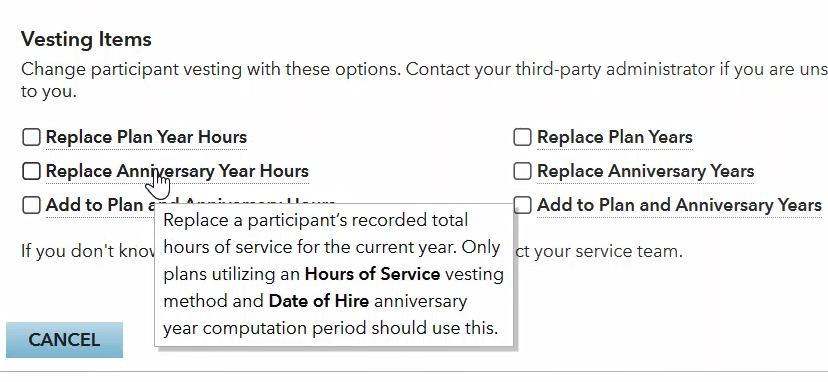
Under the Add/Remove Columns section, select applicable vesting item(s) . Click CONTINUE.

  • You can roll over any terms with a dotted line underneath for a definition.
  • If you are unsure of what to select, contact your third-party administrator. Your selections will be used in building your vesting updates.
  • If you select hours or years, convert your time accordingly.

vesting help screenshot

Step
5

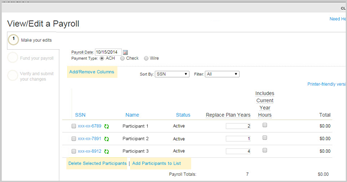
On the Make Your Edits screen, enter the current date in the Payroll Date field.

If a future payroll date is entered, the payroll will remain in Held status until that day or the next closest business day.

Step
6

The payment type, ACH, will already be selected.

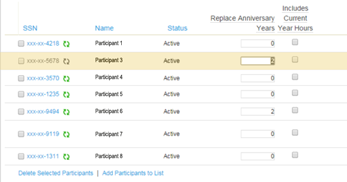
Enter the vesting time in the appropriate column(s) for each participant .

  • You can filter your view by clicking any of the blue column headers.
  • As you work, the row for the participant you are entering information for will be highlighted.

If you are adding or replacing years, the Includes Current Year Hours column will appear.

  • Check this box if your update includes participants’ current-year vesting.
  • Unchecked boxes indicate that the update does not affect current-year vesting, and it will advance on the plan year-end date or the anniversary of each participant’s hire date, depending on the plan type.

help screenshot

Step
7

Confirm column totals and click CONTINUE or SAVE AND CONTINUE LATER .

  • Clicking SAVE AND CONTINUE LATER allows you to save your payroll and return to it at your convenience. This is useful if you don’t initially have all the information you need to submit your payroll, but would like to get started.
  • Your payroll will be saved with an In Progress status.
Step
8

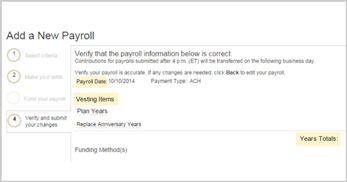
On the Verify and Submit Your Changes screen, confirm your payroll date and vesting items.

If you need to make changes, you can click the numbered step indicator for the section you’d like to update; however, you may need to re-enter some information.

help screenshot

NOTE: Your vesting items, date and total will differ from the example above.

If you want to receive an email confirming your request, please enter your email address in the Email Notifications field.

Click SUBMIT.

Step
9

You will see a confirmation page.

If you want to print a copy of this confirmation page to save for your records, do so now. Once you leave this page, you cannot return.

Click DONE to return to the Payroll screen.

Step
10

Verify that the status of your payroll with your vesting updates is Held or In Progress .

  • Held means your vesting updates have been submitted for processing, but they have not posted to participants’ accounts.
  • In Progress means your vesting updates have been saved, but have not been submitted for processing. This status can result from clicking Save and Continue Later.
  • While logged into the RecordkeeperDirect website, you can roll over the Status column header to view more information.

help screenshot

How do I update vesting for multiple participants?

You can update vesting for multiple participants by importing a payroll. The process to import a payroll consists of two parts:

Part 1: Formatting a spreadsheet that will be used as a template to build future vesting updates.

Part 2: Entering the spreadsheet into our system.

Step
1

Create an Excel spreadsheet with the following column headings:

  • Social Security number (required, numbers only ‒ no dashes or spaces)
  • First name (in an individual column)
  • Last name (in an individual column)
  • Vesting value to update (hours or years of service)

help screenshot

Step
2

Enter participant information into each column. If you are missing information, fields can be left blank.

If you are reusing a previous CSV (comma delimited) file for your payroll, remember to delete all information for participants that is not applicable for this payroll.

Step
3

Save the information as a CSV (comma delimited) file by selecting Save As from Excel’s file drop-down menu, then selecting CSV from the Save as type field.

help screenshot

We highly recommend that you save your spreadsheet as a CSV (comma delimited) file before importing it into our system. If you choose to upload an Excel workbook, see our technical FAQ.

Step
4

After logging in, click the Plan Administration tab, which will take you to the Payroll section.

Click the blue ADD NEW PAYROLL button and select Import.

Step
5

On the Select File & Format tab, click the blue BROWSE button to select the CSV file you’d like to import.

Step
6

If you are importing for the first time, choose Establish New Format and then Create New Name.

Enter a name for your payroll format in the field and click CONTINUE.

  • On the Define Format screen, select Comma Delimited, check the box next to File contains column headings and click CONTINUE.

    help screenshot

If you want to save over a previously formatted spreadsheet, select Save Over Existing Format, choose the file you want to overwrite and click CONTINUE.

If you are importing a previously formatted template using the same money types, column values and header rows as a previous import file. choose Use Existing Format, select the format name and click CONTINUE.

Step
7

On the Preview Import File screen, disregard the Record Type field (it will always default to FINANCIAL). Review the values and column headings for accuracy in the Preview of your import file window and click CONTINUE.

If you need to make changes, click the Select File & Format tab. Please be aware that you may need to re-enter some information from the previous step.

Step
8

On the Map Columns screen, select the appropriate description in the drop-down menu for each row in the Financial Column. For participants’ first and last names, choose Skip This Column. Choose the appropriate vesting item by scrolling to “Replace” or “Add” in the drop-down. Click CONTINUE.

If you are unsure about which descriptions to select, contact your third-party administrator.

Vesting items are not in alphabetical order, but they are grouped together in the dropdown.

help screenshot

Step
9

If your vesting item is not in hours, you can skip this step.

On the next screen after your selection, choose the appropriate decimal position in the drop-down menu and click CONTINUE.

The default is 1 = 1.0 (most people will use this). For data fields in which 100 equals $1.00, choose 1 = .01.

If you need help, call us at (800) 421-6019.

This concludes Part 1, in which you have formatted your spreadsheet. During Part 2, you will enter the vesting updates into our system.
Step
10

On the Make Your Edits screen, enter the current date in the Payroll Date field.

If a future payroll date is entered, the payroll will remain in Held status until that day or the next closest business day.

Step
11

The payment type, ACH, will already be selected. Verify the vesting information for each participant .

  • You can sort your view by clicking any of the blue column headers. Based on the header you select, filtering will arrange the information in sequential order for easier searching.
  • As you work, the row for the participant you are entering information for will be highlighted.

You can modify your spreadsheet in the following ways:

  • To add participants, click Add Participants to List.
  • To remove participants from the payroll list, check the boxes next to their Social Security numbers and click Delete Selected Participants.
  • To add a contribution type, click Add/Remove Columns and make your selections.

help screenshot

Click CONTINUE or SAVE AND CONTINUE LATER .

  • Clicking SAVE AND CONTINUE LATER allows you to save your payroll and return to it at your convenience.
  • This is useful if you don’t initially have all the information you need to submit your payroll, but would like to get started. Your payroll with the vesting updates will be saved with an In Progress status.
Step
12

On the Verify and Submit Your Changes screen, confirm the payroll date is the current date and vesting items are correct.

help screenshot

Step
13

Enter your email address in the Email Notifications field if you would like to receive a confirmation of the request.

Click SUBMIT.

If you need to make changes, you can click the numbered step indicator for the section you’d like to update. Please be aware that you may need to re-enter some information from previous steps.

Step
14

You will see a confirmation page.

If you want to print a copy of this confirmation page to save for your records, do so now. Once you leave this page, you cannot return.

Click DONE to return to the Payroll screen.

Step
15

Verify that the status of your payroll with the vesting updates is Held or In Progress .

  • Held means your payroll has been submitted for processing, but funds have not posted to participants’ accounts.
  • In Progress means your payroll has been saved, but has not been submitted for processing. This status can result from clicking Save and Continue Later.
  • While logged into the RecordkeeperDirect website, you can roll over the Status column header to view more information.

If you do not see one of those statuses, call us at (800) 421-6019.

help screenshot

How do I update participant vesting?

Vesting will primarily be updated through manual or import payroll, but if your plan uses hours of service, you can update vesting while adding or updating a participant. If you are unsure which vesting method your plan uses, please contact your third-party administrator.

Vesting will primarily be updated through manual or import payroll, but if the plan uses hours of service, you can update vesting while adding or updating a participant.

  • Manual payroll (ideal for smaller plans)
  • Import payroll (ideal for larger plans)
  • Add/update participant (available only to plans that use hours of service ‒ if you need to update current or prior hours/years, you can use the Add/Update screens. If not, please update through manual or import payroll.)

Where can I find other vesting information?

In the Reports section, you can request a report for any specified date range that provides you with the following information for each participant:

  • Current vesting percentage
  • Hire date
  • Rehire date (if applicable)
  • Vesting determination date
  • Termination date (if applicable)

The vesting status detail report can help you maintain vesting for your plan, since you can find all this information in one place. Please note that you will receive your report within 24 hours.

The vesting status detail report can help you maintain vesting for the plan, since you can find all this information in one place. Please note that you will receive your report within 24 hours.

To get a report, follow these steps:

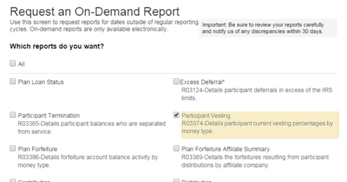
  1. After you have logged in, click on the Reports & Analysis tab in the blue bar.
  2. Click Standard Reports in the gray bar. Click the blue REQUEST AN ON-DEMAND REPORT button.
  3. Check the box next to Participant Vesting.

    help screenshot

  4. Enter your selected date range for the report and click SUBMIT REQUEST.
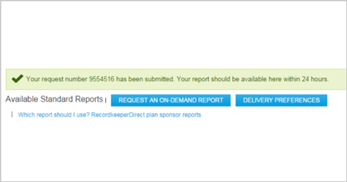
  5. You will see a green confirmation message, stating that your report will be available within 24 hours.

    help screenshot

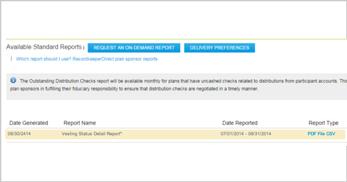
  6. When your report is ready, you will find it in the Available Standard Reports section, available for download in three formats (PDF, File and CSV).

    Click the Show Filter link on the right to sort through reports and time periods.

    help screenshot

While reading your report, keep these things in mind:

  • Elective deferral, Roth elective deferral and Safe Harbor match contributions are not subject to a vesting schedule and are always considered 100% vested.
  • Participants who do not have a balance in vesting money types will not appear on the report.
  • Terminated participants without assets will display “0” as the current vesting percentage.
  • Retirement-eligible participants who have met the plan’s normal retirement age in combination with service year requirements will automatically display 100% vested in all money types.

Print this topic

Help Center / Beneficiary Designation Services


How do Beneficiary Designation Services work?

Beneficiary Designation Services are offered as a standard feature for no additional cost to RecordkeeperDirect® plans as part of the Online Enrollment feature suite. These services are activated by default for all new plans and are subject to the RecordkeeperDirect Online Enrollment Terms and Conditions, which are included in the Online Enrollment Authorization form. Plans that were established before the availability of these services can submit the authorization form (available in the Forms section of this site) to activate them.

Beneficiary Designation Services offer the following benefits:

  • Primary and contingent beneficiary designations can be captured during the online enrollment process.
  • Primary and contingent beneficiary designations can be modified post-enrollment via the participant website or mobile app.
  • Plan sponsors can update beneficiary designations via the plan sponsor website, as needed (e.g., if the participant submits a beneficiary designation form).
  • Plan sponsors and intermediaries can view participant beneficiary designations at any time via the plan sponsor website.

Please note that married participants are not able to designate a primary beneficiary other than their spouse online. In these cases, they will be directed to contact their employer to obtain a beneficiary election form. The participant must complete this form and obtain spousal consent as required by plan rules/regulations and then return the paperwork to the employer. The employer is then responsible for inputting the beneficiary information on the plan sponsor website and retaining the paper form with plan records.

How are beneficiary elections made during enrollment?

As part of the online enrollment experience, participants will have the opportunity to designate their primary and contingent beneficiaries. This option is only presented during the “Custom Enrollment“ flow on the participant website or during the online enrollment process offered through the mobile app.

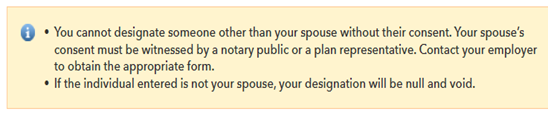
Most common beneficiary elections can be made online; however, married participants who wish to designate a primary beneficiary other than their spouse will not be able to do so online. This is because spousal consent is typically required. They will be directed to contact their employer to obtain a beneficiary designation form:

spouse beneficiary designation warning

If a participant completes a paper beneficiary designation form and returns it to you, you will need to access the plan sponsor website to input the participant’s beneficiary designations:

If a participant completes a paper beneficiary designation form and returns it to their employer, you or the plan sponsor will need to access the TPA or plan sponsor website to input the participant’s beneficiary designations:

Step
1
After logging into the plan sponsor website, click the Plan Administration tab, then select the Participants sub-tab. After logging in to the TPA website, click VIEW PLANS, then click Actions for the plan you wish to view and select Participants from the drop-down menu. From the plan sponsor website, click the Plan Administration tab, then select the Participants sub-tab.
Step
2
Search for the participant account using either their last name or Social Security number, or click SUBMIT to load the full participant roster.
Step
3
Click the participant’s name and select Participant Information from the drop-down menu.
Step
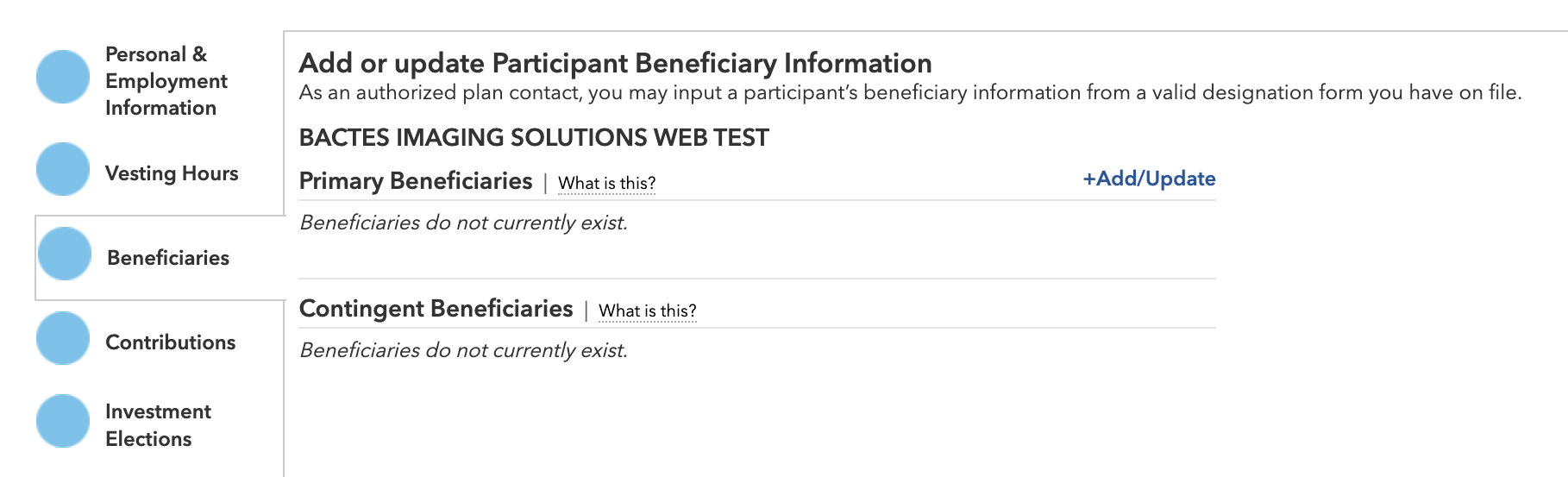
4
On the Beneficiaries tab, click +Add/Update.

beneficiary screenshot

Step
5
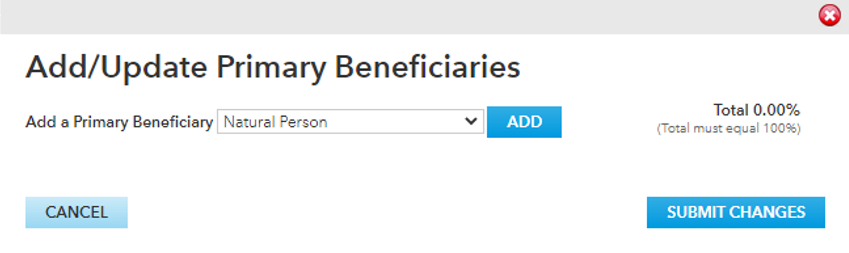
In the pop-up window, select Natural Person or Entity and click ADD.

add/update primary beneficiaries screenshot

Step
6
Complete the indicated fields. Once changes are entered, click SUBMIT CHANGES.

Retain the paper beneficiary form with the plan’s records.

How are beneficiaries updated after enrollment?

When the online enrollment feature suite is enabled for a plan, participants can modify their beneficiaries at any time on the participant website or mobile app.

Although the website and app can accommodate the most common types of beneficiary designations, if a married participant wishes to designate a primary beneficiary other than their spouse, they will be directed to contact their employer to obtain a paper beneficiary designation form.

spouse beneficiary designation warning

If a participant completes a paper beneficiary designation form and returns it to you, you will need to access the plan sponsor website to input the participant’s beneficiary designations:

If a participant completes a paper beneficiary designation form and returns it to their employer, you or the plan sponsor will need to access the TPA or plan sponsor website to input the participant’s beneficiary designations:

Step
1
After logging into the plan sponsor website, click the Plan Administration tab, then select the Participants sub-tab. After logging in to the TPA website, click VIEW PLANS, then click Actions for the plan you wish to view and select Participants from the drop-down menu. From the plan sponsor website, click the Plan Administration tab, then select the Participants sub-tab.
Step
2
Search for the participant account using either their last name or Social Security number, or click SUBMIT to load the full participant roster.
Step
3
Click the participant’s name and select Participant Information from the drop-down menu.
Step
4
On the Beneficiaries tab, click +Add/Update.

beneficiary screenshot

Step
5
In the pop-up window, select Natural Person or Entity and click ADD.

add/update pop-up window screenshot

Step
6
Complete the indicated fields. Once changes are entered, click

SUBMIT CHANGES.

Retain the paper beneficiary form with the plan’s records.

Participants can also view their existing beneficiary designations through the participant mobile app, but they aren’t able to update those designations through the app at this time.

What reporting is available for Beneficiary Designation Services?

Plan sponsors and TPAs can view the existing beneficiary designations for individual participants by taking the following steps:

Step
1
After logging into the plan sponsor website, select the Plan Administration tab, then click the Participants sub-tab. After logging in to the TPA website, click VIEW PLANS, then click Actions for the plan you wish to view and select Participants from the drop-down menu. From the plan sponsor website, click the Plan Administration tab, then select the Participants sub-tab.
Step
2
Search for the participant account using either their last name or Social Security number, or click SUBMIT to load the full participant roster.
Step
3
Click the participant’s name and select Participant Information from the drop-down menu.
Step
4
Select the Beneficiaries tab to view existing beneficiary designations.

There is not currently a comprehensive beneficiary report available through the plan sponsor website. If you are in need of additional support or information regarding beneficiary elections made online for your retirement plan, call us at (800) 421-6019.

There is not currently a comprehensive beneficiary report available through the plan sponsor or TPA websites. If you are in need of additional support or information regarding beneficiary elections made online for a retirement plan, call us at (800) 421-6019.

Print this topic

Help Center / Deferral Designation Services


How do Deferral Designation Services work?

Deferral Designation Services are offered as a standard feature for no additional cost to RecordkeeperDirect® plans and are part of the online enrollment feature suite. These services are activated by default for all new plans and are subject to the RecordkeeperDirect Online Enrollment Terms and Conditions, which are included in the Online Enrollment Authorization form. Plans that were established before the availability of these services can submit the authorization form (available in the Forms section of this site) to activate them.

Deferral Designation Services offer the following benefits:

  • New participants can make deferral elections during the online enrollment process.
  • New and existing participants can modify their deferral elections after enrollment via the participant website and mobile app.
  • Plan sponsors can update deferral elections via the plan sponsor website, as needed (e.g., if the participant submits a paper form).
  • Plan sponsors and intermediaries can review participant deferral elections at any time via the plan sponsor website.
  • For plans using automatic enrollment services, notification will be sent to the plan sponsor when an employee should be auto-enrolled or auto-escalated.

How are deferral elections made during enrollment?

As part of the online enrollment experience, participants will have the opportunity to make a deferral election through either the participant website or mobile app. Depending on plan provisions, participants will be able to choose to contribute on either a pre-tax or Roth after-tax basis.

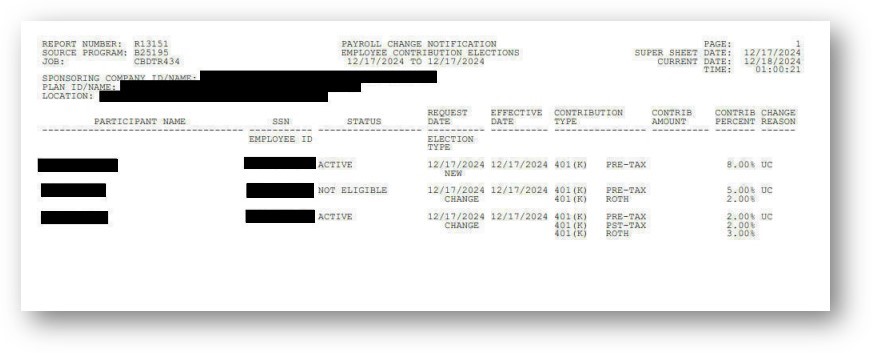
When a participant enrolls and makes a deferral election, an email will be sent to 1—3 designated plan sponsor contacts notifying them that a new Payroll Change Notification report is available in the Reports & Analysis section of this website. These reports are produced by default on a daily frequency but can be modified to weekly upon request:

 Payroll change notification

This report shows only new elections and/or changes since the prior report. For a report that shows all deferral elections for your plan, follow these steps:

This report shows only new elections and/or changes since the prior report. For a report that shows all deferral elections for a plan, follow these steps:

Step
1

After logging in to the plan sponsor website, click the Reports & Analysis tab.

After logging in to the TPA website, click the VIEW PLANS button. Click Actions at the end of the row for the plan you want to view, then select Reporting from the drop-down menu.

Select the Advanced Reports sub-tab beneath it.

Select the Advanced Reports tab.

Click the blue REQUEST A CUSTOM PARTICIPANT REPORT button.

Step
2

On the pop-up window, click the purple drop-down arrow next to Census.

Step
3

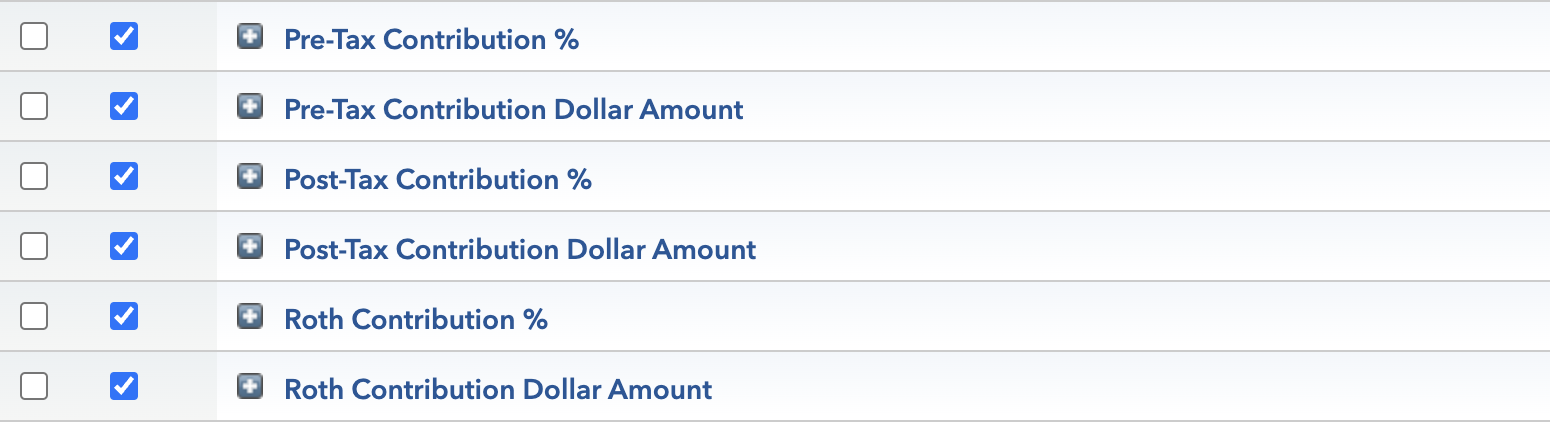
Under the Show column, check the boxes next to the following options: Pre-Tax Contribution %, Pre-Tax Contribution Dollar Amount, Post-Tax Contribution % (if applicable), Post-Tax Contribution Dollar Amount (if applicable), Roth Contribution % (if applicable), Roth Contribution Dollar Amount (if applicable).

Advanced report request

Step
4

In the bottom-right corner, click RUN REPORT.

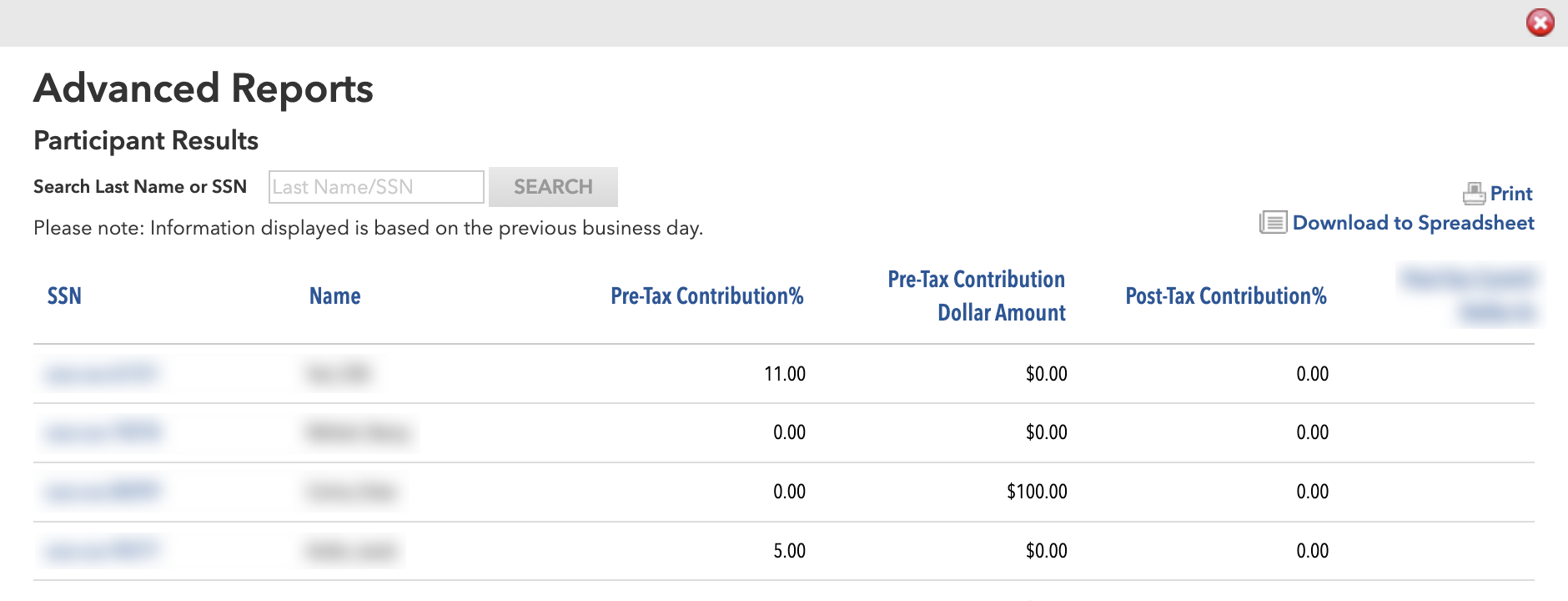
Advanced report

This reporting provides the information the plan sponsor needs to withhold the appropriate amount of pay from employee paychecks and make the corresponding contributions into their retirement plan accounts.

How are deferrals updated after enrollment?

Participants can update their deferral elections post-enrollment on either the participant website or mobile app.

When this occurs, an email will be sent to 1-3 designated plan sponsor contacts notifying them that a new Payroll Change Notification report is available in the Reports & Analysis section of this website. These reports are produced by default on a daily frequency but can be modified to weekly upon request:

Payroll change notification

This report shows only new elections and/or changes since the prior report. For a report that shows all deferral elections for your plan, follow these steps:

This report shows only new elections and/or changes since the prior report. For a report that shows all deferral elections for a plan, follow these steps:

Step
1

After logging in to the plan sponsor website, click the Reports & Analysis tab.

After logging in to the TPA website, click the VIEW PLANS button. Click Actions at the end of the row for the plan you want to view, then select Reporting from the drop-down menu.

Select the Advanced Reports sub-tab beneath it.

Select the Advanced Reports tab.

Click the blue REQUEST A CUSTOM PARTICIPANT REPORT button.

Step
2

On the pop-up window, click the purple drop-down arrow next to Census.

Step
3

Under the Show column, check the boxes next to the following options: Pre-Tax Contribution %, Pre-Tax Contribution Dollar Amount, Post-Tax Contribution % (if applicable), Post-Tax Contribution Dollar Amount (if applicable), Roth Contribution % (if applicable), Roth Contribution Dollar Amount (if applicable).

Advanced report request

Step
4

In the bottom-right corner, click RUN REPORT.

Advanced report

This reporting provides the information the plan sponsor needs to withhold the appropriate amount of pay from employee paychecks and make the corresponding contributions into their retirement plan accounts.

If a participant makes a deferral election change by submitting a completed form to their employer, the plan sponsor can make this update on the plan sponsor website. This can be done through the following steps:

If a participant makes a deferral election change by submitting a completed form to their employer, you or the plan sponsor can make this update on the TPA or plan sponsor websites. This can be done through the following steps:

Step
1

After logging in to the plan sponsor or TPA website, click the Plan Administration tab, then select the Participants sub-tab.

After logging in to the TPA website, click VIEW PLANS, then click Actions for the plan you wish to view and select Participants from the drop-down menu. From the plan sponsor website, click the Plan Administration tab, then select the Participants sub-tab.

Step
2

Search for the participant account using either their last name or Social Security number, or click SUBMIT to load the full participant roster.

Step
3

Click the participant’s name and select Participant Information from the drop-down menu.

Step
4

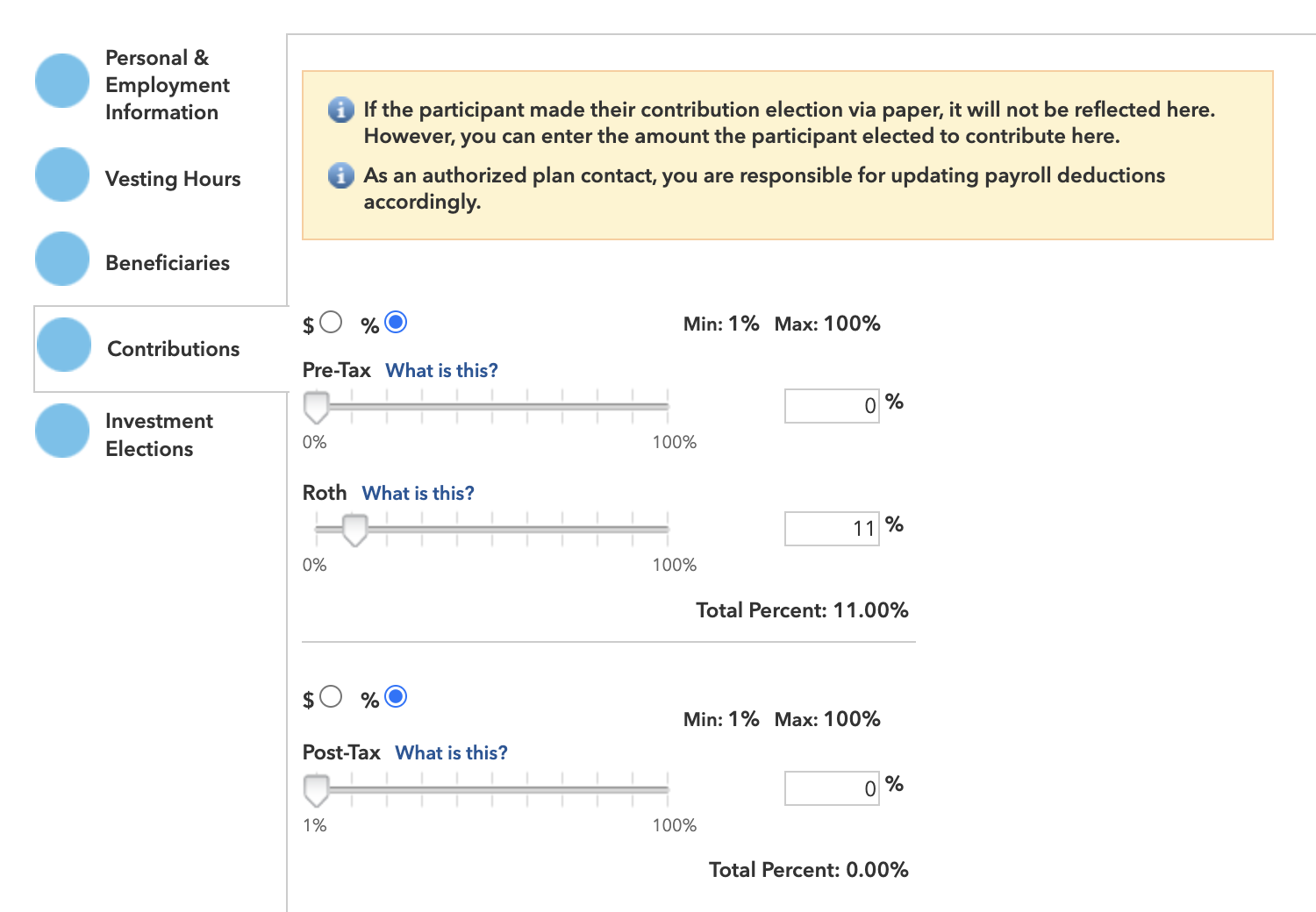
On the Contributions tab, update the deferral amount as requested by the participant.

Payroll deferral amount

When finished, click DONE.

Step
5

Verify your changes. To make additional changes, click BACK.

If all of the information is correct, click SUBMIT.

What reporting is available for Deferral Designation Services?

When a participant enrolls and/or updates a deferral election, an email will be sent to 1-3 designated plan sponsor contacts notifying them that a new Payroll Change Notification report is available in the Reports & Analysis section of this website. These reports are produced by default on a daily frequency but can be modified to weekly upon request:

Payroll change notification

This report shows only new elections and/or changes since the prior report. For a report that shows all deferral elections for your plan, follow these steps:

This report shows only new elections and/or changes since the prior report. For a report that shows all deferral elections for a plan, follow these steps:

Step
1

After logging in to the plan sponsor website, click the Reports & Analysis tab.

After logging in to the TPA website, click the VIEW PLANS button. Click Actions at the end of the row for the plan you want to view, then select Reporting from the drop-down menu.

Select the Advanced Reports sub-tab beneath it.

Select the Advanced Reports tab.

Click the blue REQUEST A CUSTOM PARTICIPANT REPORT button.

Step
2

On the pop-up window, click the purple drop-down arrow next to Census.

Step
3

Under the Show column, check the boxes next to the following options: Pre-Tax Contribution %, Pre-Tax Contribution Dollar Amount, Post-Tax Contribution % (if applicable), Post-Tax Contribution Dollar Amount (if applicable), Roth Contribution % (if applicable), Roth Contribution Dollar Amount (if applicable).

Advanced report request

Step
4

In the bottom-right corner, click RUN REPORT.

Advanced Report


What types of reports are available?

Capital Group provides you and your TPA with monthly and annual reports that offer valuable information about your plan. Many of these reports are made available on the plan sponsor website each month, with an annual summary provided at your plan’s year-end.

A brief description of these reports can be found in the RecordkeeperDirect® Plan Sponsor Reports document, which you can access on the Reports and Analysis section of the plan sponsor website

Please review these reports carefully each month. As disclosed in your Recordkeeping Services Agreement, you must notify us of any discrepancies within 30 days of delivery.

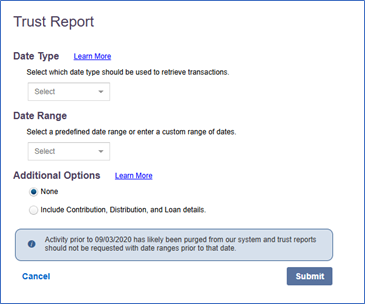
In the following sections, you’ll learn more about our Standard reports, Trust reports and Custom reports, including default templates, and how to request additional reports you will need for a plan audit.

Plan sponsor reports: Reviewing Standard reports

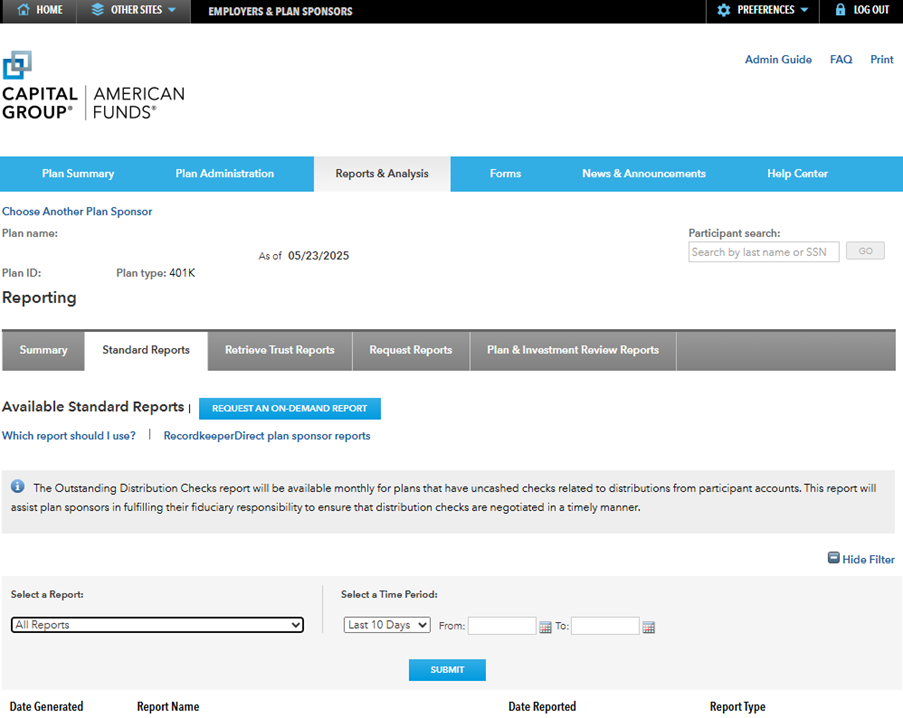
This screen allows you to retrieve all reports or one or more specific reports. The default view shows reports that have become available within the last 10 days, but you can also review reports that became available within the last 30 or 90 days or within a specific time period during the past 90 days.

Use the Select a Time Period option to choose the time period, select the report(s) you want from the drop-down menu and then click on Submit.

 Payroll change notification

Standard reports can be retrieved from the Standard Reports subtab for 90 days after they first become available (approximately 10 business days after the end of the month). The Date Generated column shows the date the report became available online, and the Date Reported column shows the date range of the available reports.

Under the Report Type column, click on the format of the report that you would like to review to open it. When the report appears on the screen, you then can print it and/or save the file on your computer for future access.

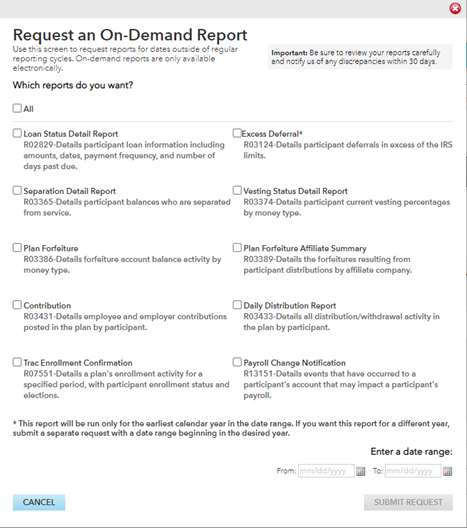
Although reports are no longer available on this screen after 90 days, you can re-create an older report by using the Request an On-Demand Report screen described below (note that older plan data may have been purged in some cases).

Plan sponsor reports: Request an On-Demand report

On the Standard Reports subtab, click on the Request an On-Demand Report button to generate reports for time periods beyond 90 days — when they are no longer listed in the Standard Reports listing. Simply select the report(s) you want, enter the date range and then click on Submit Request.

 Payroll change notification

Once the request has been submitted, you will receive confirmation of your request and a request number. Please make note of the request number, as you will use it to identify the report if any follow-up is needed on your request. A one-time report will be available for seven days after delivery. These custom on-demand reports are marked with an asterisk (*) on the Standard Reports screen to distinguish them from the standard reports.

On-demand reports generally are available on the Standard Reports screen within a few hours of the request, although they may take longer during periods of high usage. Please contact a client service team member at (800) 421-6019 if your report is not available within 24 hours of your request.

Plan reporting: Trust reports

To request a Trust report, click on the Request Reports tab. Locate the Trust template in the list of report templates and then click the three bars to the right, in the Actions column. In the drop-down menu, select Open. A new window will appear where you will need to:

  • Select the Date Type from the drop-down menu.
  • Enter the Date Range for the report period.
  • Under Additional Options, you can choose to “Include Contribution, Distribution, and Loan details” along with your Trust report.
  • Click on the Submit button.

 Payroll change notification

After you submit your request, you will see a pop-up that says Success and a request number will appear. Be sure to take note of the request number, as you’ll need to refer to it to identify and retrieve the trust report.

Typically, you will be able to retrieve and download the report on the Retrieve Trust Reports tab within an hour or two; however, some delays may occur during periods of high volume. Please note that the page must be manually refreshed — you can do this by clicking on the Retrieve Trust Reports tab again. If your report request number does not appear on the screen by the morning after you request it, call a client service team member at (800) 421-6019 for assistance.

Plan reporting: Trust reports — Retrieving Trust reports

You will be able to download or print your report when the Status field indicates that the report is Complete on the Retrieve Trust Reports screen. The Status field will indicate that the report is In Progress while it is being generated. Once the report is available, click on the three bars on the right side of the request under the Actions column to open the download menu. You’ll have an option to Open the report or Export it via PDF, Excel, CSV, or DAT.

If you click Open, a new window will appear with the trust report defaulted to the Summary tab. You can also click the Plan tab as well as the Details tab for more information.

The PDF option launches a print-ready version of the Trust report that can be reviewed and printed in Adobe Acrobat® Reader, eliminating the need to format the file for printing. If you don’t have Acrobat Reader installed on your computer, you can download it from Adobe’s website.

 Payroll change notification

To download the file into a spreadsheet such as Microsoft Excel, click on the Export to Excel option. On the dialog box that appears, click on the Export button to review the file in the spreadsheet format shown below. You can then work on the file and/or save it on your computer.

 Payroll change notification

To see a list of column values and fund abbreviations for various report downloads, please reference the RecordkeeperDirect® administration guide: Trust reports - chapter 15.

Custom reports and report templates

Under the Request Reports subtab, you can generate custom reports and access report templates that allow you to review your plan in a variety of ways, analyze plan activity and manage plan operations more effectively. You can create participant-level reports that will include only participants that meet your defined criteria. You also can generate reports at the plan level, such as summaries of transaction activity, assets or payroll contributions within specified date ranges or using other criteria you establish. The reports contain current plan information, reflecting activity and assets as of the close of the prior business day.

You control how much detail you want to include by selecting the criteria that will drive the search and identifying the information items that you want to review in the final report. You can generate just a high-level summary report, or drill down to review more details about the participants or transactions of interest.

In addition to printing the Custom reports, you can download them into Microsoft Excel or other spreadsheet applications so you can do additional sorting or calculations on the data.

Request reports: Report templates

Under the Report Template column, you will see a number of existing templates to access. You can filter by type on the left-hand side of the page by selecting or deselecting the checkboxes. To access a report from an existing template, click the three bars under the Actions column and select Open. A new window will appear where you can select the criteria you want included in your report. When you are ready, click Run. You also have the option to save the criteria you just selected into a custom template by clicking the Save & Run button.

Your report will be generated in a new window, and you will be able to see a summary of it. You can also view specific details of the report by clicking the View link under the View Details header. There are also small drop-down arrows next to each data column you can click to open an additional menu which allows you to sort, filter and chart the data within the report. When you are ready, you can Open or Export the report via PDF, Excel, or CSV by clicking the All or Filtered links above. If you’ve filtered data, clicking the Filtered link will only export what you’ve selected to view.

Payroll change notification

Request reports: Create Custom Report

Clicking the Create Custom Report button will open a new window where you will be able to select what type of report you want from the list below:

Payroll change notification

After selecting the type of custom report you want, click the Let’s Get Started button. The following screen will allow you to include additional options and values you’d like to appear in the report.

The search can be based on a single criterion, such as all participants with an account balance below $5,000. Or you can use multiple criteria, such as all participants with an account balance below $5,000 and terminated status. You also can perform more complex searches. For example, you may want to generate a report of all active participants who work in a specific location and review their total portfolio balances as well as their balances in a specific investment option. You and your plan’s financial professional could then identify participants with a high percentage of assets invested in that specific investment option and invite them to a meeting or send them a brochure that addresses the value of a diversified portfolio.

After you have identified all of the search criteria and the information you want to display in the report, click on the Run button that appears at the bottom of the screen to start the query.

Payroll change notification

Your report will be generated in a new window, and you will be able to see a summary of it. (You may need to allow pop-ups in your browser for the report to generate). You can also view specific details of the report by clicking the View link under the View Details header. There are also small drop-down arrows next to each data column that you can click to open an additional menu, which allows you to sort, filter and chart the data within the report.

Payroll change notification

Payroll change notification

Payroll change notification

When you are ready, you can Open or Export the report via PDF, Excel, or CSV by clicking the All or Filtered links above the data. If you ’ve filtered data, clicking the Filtered link will only export what you ’ve selected to view.

Need reports for a plan audit?

Use the Request for Plan Audit Reports form to request the standard audit package, which includes:

  • SOC 1 (separate reports for retirement plan services, Capital Group information technology and American Funds Service Company)
  • Bridge/gap letter (if applicable)
  • Annual Activity report
  • Taxable Distribution report (includes 1099R information)
  • Employer packet (includes Trust, Excess Deferral, Separation report, Vesting Status, Plan Loan Status, Age 70.5 report, Contribution report, Daily Distribution report, Plan Forfeiture, Plan Unallocated Earnings Account reports)

Custodial certification

Self-trusteed plans can use the Request for Custodial Certification Letter form to request a Custodial certification letter for the plan year being audited. This certification letter may allow you to undergo an ERISA Section 103(a)(3)(c) audit rather than a full-scope audit. Note that you will be billed $750 for this service.

Plan sponsors using trustee services from Capital Bank and Trust will automatically be provided with a certification letter.

Self-service report options

Refer to the Standard Reports tab for instructions on retrieving the reports in the list.

  • Daily Distribution report
  • Contribution report
  • Separation report
  • Plan Forfeiture report
  • Plan Loan Status report
  • Vesting Status report
  • Excess Deferral report
  • Plan Forfeiture Affiliate Summary report

Refer to the Trust reports, Custom reports and report templates tabs for instructions on Trust reports and other report types.

If you have additional questions about plan audit reports, call us at (800) 421-6019.

fourth-subtopic

For future use, such as Login/GS, or Loans

Help Center

Explore the features of the RecordkeeperDirect website to help set up and manage your company’s retirement plan.

Explore the features of the RecordkeeperDirect® website to help set up and manage your clients’ retirement plans.


Get a quick overview of key sections of the website.

Learn how our employee deferral eligibility tracking services work.

Establish a retirement plan account for an employee/participant so they can enroll online.

Learn how our Beneficiary Designation Services work.

Learn how our Deferral Designation Services work.

Perform key payroll tasks.

  • Information you’ll need for processing a payroll

    Before starting, you will need:

    • A list of payroll participants
    • The type and amount of payroll deduction for each participant
    • If applicable, the type and amount of employer contribution for each participant
    • The total amount of both employee and employer contributions

    This information can be found in the plan’s payroll report, which can be provided by the plan’s outside payroll provider or an internal payroll department.

    If your plan is utilizing Deferral Designation Services — part of the online enrollment feature suite — you can also access the latest participant deferral elections through the Reports & Analysis section of this site. Refer to the Administration guide or the Deferrals section for more details about how to access this reporting.

    If your plan is utilizing deferral designation services — part of the online enrollment feature suite — you can also access the latest participant deferral elections through the Reports & Analysis section of this site. Refer to the Administration guide or the Deferrals section for more details about how to access this reporting.

    If forfeiture accounts will be used to fund your payroll, please consult your third-party administrator.

  • Add or manage a payroll
  • How to submit contributions (video)

Manage a participant’s vesting information.

  • Information you’ll need to manage vesting

    Before starting, you will need:

    • Employee hire date (This should be entered on the Personal & Employment Information screen.)
    • Vesting computation period (If your plan specifies that vesting begins on an annual date other than a participant’s hire date, then the vesting computation period is measured accordingly.)
    • Vesting computation period (If the plan specifies that vesting begins on an annual date other than a participant’s hire date, then the vesting computation period is measured accordingly.)
    • Hours worked during the computation period
    • Total hours of service for the current year
    • Total hours of service at plan’s year-end
    • Total hours of service based on participant’s anniversary date

    Most of this information can be found in employee records. If you are unsure of your plan’s vesting method or computation period, contact your third-party administrator.

    Most of this information can be found in employee records.
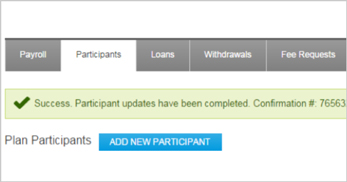
  • Update and manage vesting

Learn about reports we have available.


Investments are not FDIC-insured, nor are they deposits of or guaranteed by a bank or any other entity, so they may lose value.


Investors should carefully consider investment objectives, risks, charges and expenses. This and other important information is contained in the mutual fund prospectuses and summary prospectuses, which can be obtained from a financial professional and should be read carefully before investing.